How to Rip Movies from Netflix in 2026: 3 Proven Methods
 Ashley Wood
- 15 June, 2026
- Blog
For users who want more flexibility when watching Netflix content offline, relying solely on the Netflix app can sometimes be limiting. Netflix does not provide download options for Windows PC and Mac, and downloaded titles may be subject to expiration dates and playback restrictions. Additionally, offline content can only be viewed within the Netflix app.
That's one reason why many people search for guides on how to rip movies from Netflix. In this guide, we'll explore three effective methods and compare their features, ease of use, output quality, and overall performance to help you choose the best option for offline viewing.
- Part 1. Why You Can't Keep Netflix Downloads Forever
- Part 2. How to Rip Netflix Movies with FlixiCam Netflix Video Downloader 👍
- Part 3. Screen Record Netflix Movies
- Part 4. Rip Movies from Netflix with GitHub Open-Source Tool
- Part 5. FlixiCam vs Audials vs yt-dlp: Which Is the Best Way to Rip Netflix Movies?
- Part 6. What You May Ask About Ripping Netflix Movies
Part 1. Why You Can't Keep Netflix Downloads Forever
Netflix allows subscribers to download movies and TV shows for offline viewing, but these downloads come with several restrictions. Downloaded movies can only be watched inside the Netflix app and cannot be transferred, copied, or converted to common formats like MP4.
In addition, Netflix downloads typically last 7–30 days, and some titles expire just 48 hours after you start watching them. Downloads can also become unavailable when a title leaves Netflix, and certain movies or shows can only be re-downloaded a limited number of times. As a result, Netflix downloads are designed for temporary offline viewing rather than long-term storage.
This means you don't truly own the downloaded content, even though it's stored on your device. If you'd like to keep Netflix movies forever and watch them on any device without these limitations, the following methods can help.
Part 2. How to Rip Netflix Movies with FlixiCam Netflix Video Downloader
For users who want to rip movies from Netflix and keep them forever, FlixiCam Netflix Downloader is one of the most convenient solutions available. It can save Netflix videos in up to 1080p resolution as MP4 or MKV files, allowing you to watch them on any compatible device without expiration concerns.
It preserves Dolby 5.1 audio, subtitles, and multiple language tracks while supporting batch downloads at speeds up to 10X faster. Its built-in Netflix browser makes it easy to find, preview, and download content in one place, and ads are automatically removed during the download process. Compatible with both Windows and Mac, FlixiCam provides a simple way to enjoy your favorite Netflix titles offline whenever you want.
Why You Need FlixiCam Netflix Video Downloader:
- Built-in Netflix web player for direct search & playback.
- Saves HD video (up to 1080 p) in MP4 or MKV universal format.
- Stores downloads locally without expiration for permanent access.
- Support batch download Netflix videos in 10x speed.
- Enables playback of downloaded Netflix videos on any device.
- Comes with multilingual subtitles support for flexible viewing.
- Ad-free Netflix downloads (Basic/ad-supported plans included).
Compatibility: Windows 10/11, macOS 11 and above.
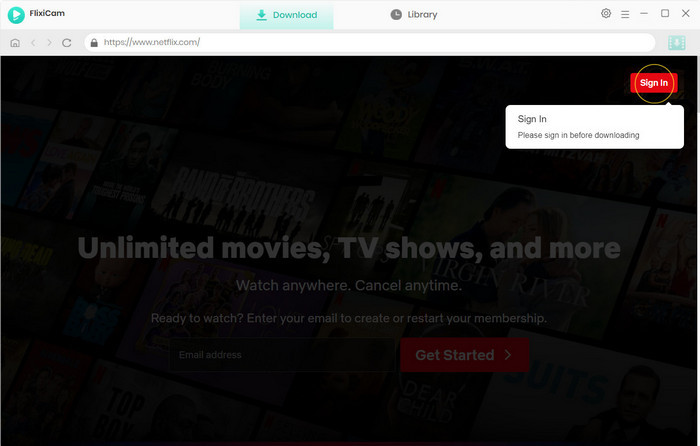
Step 1.Launch FlixiCam and Sign In to Your Netflix Account
To rip movies from Netflix and save them for offline viewing, first download and install FlixiCam Netflix Downloader on your Windows PC or Mac. Launch the program and click "Sign In" to log in with your Netflix account. Once signed in, you'll have access to Netflix's entire catalog directly within FlixiCam.
Step 2.Customize the Output Settings
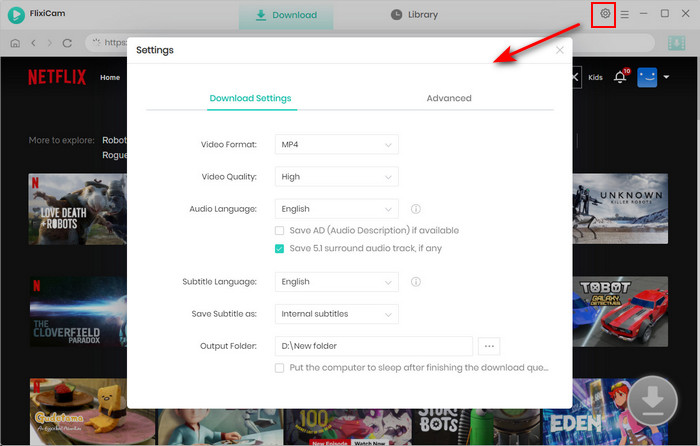
Click the gear icon in the upper-right corner to open the settings window. Here, you can choose MP4 or MKV as the output format, select video quality, set the output folder, and customize audio and subtitle preferences. These settings allow you to download Netflix movies to MP4 or MKV for flexible playback on virtually any device.
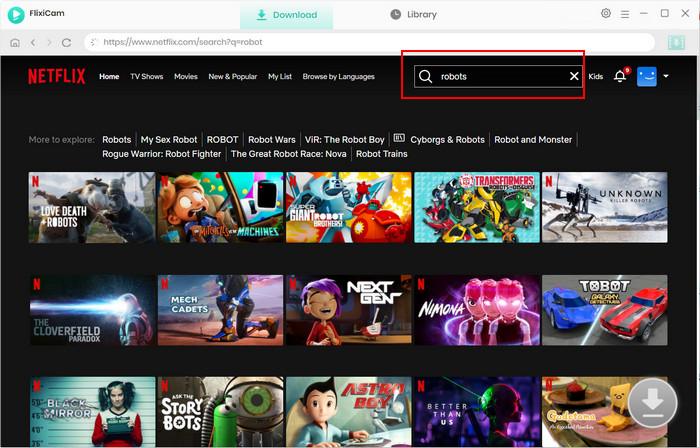
Step 3.Search for the Netflix Movie or Show You Want to Rip
Use the search bar to find the Netflix movie or TV show you'd like to save. Simply enter the title name, and FlixiCam will quickly display matching results. Select the content you want to download and prepare it for offline viewing.
Step 4.Select Audio Tracks and Subtitle Options
Before downloading, you can customize audio tracks and subtitle settings based on your preferences. For TV series, click the green Download icon to select specific seasons and episodes. Then choose Advanced Download to further customize subtitles, audio languages, and episode selections. For movies, simply click the Download icon and adjust the available options.
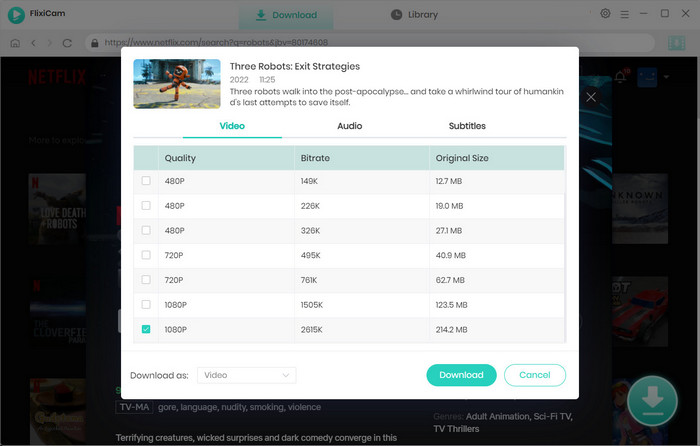
Step 5.Start Ripping Netflix Movies
Click the Download button to begin. FlixiCam will save Netflix movies and TV shows to your computer in MP4 or MKV format while preserving subtitles and audio tracks. After the download is complete, you can access your videos from the Library section or the selected output folder and watch them anytime without opening the Netflix app.
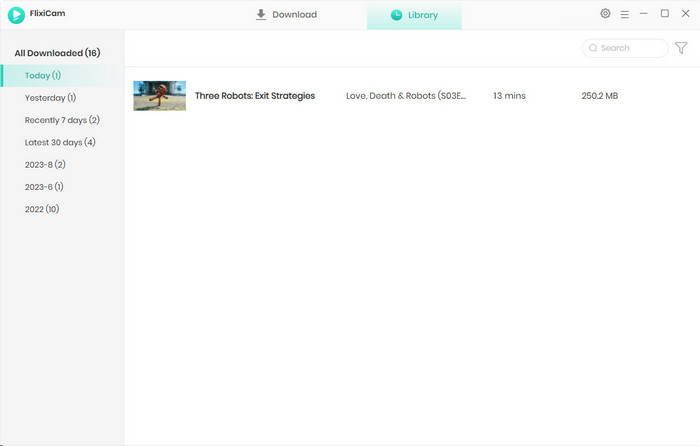
In my testing environment (310 Mbps), FlixiCam Netflix Downloader delivered the fastest and most user-friendly experience. I tested it with a 97-minute Netflix movie, and the download was completed in about 3 minutes. The software saved the 1080p movie as an MP4 file while preserving 5.1 surround sound audio, and multilingual subtitles. The entire process was quick.
2026 Guide: 6 Easy Ways to Download Netflix Movies on Mac
This guide introduces 6 easy ways to download Netflix movies for offline viewing on Mac. Learn More > >
Part 3. Screen Record Netflix Movies
Besides using a dedicated Netflix downloader, another way to save Netflix content is through screen recording. If you've tried recording Netflix with a built-in screen recorder, you've probably encountered a black screen or failed recording. Standard recording tools often don't work well with streaming services.
To successfully record Netflix movies, you'll typically need specialized software designed for capturing streaming video. One popular option is Audials, which can record Netflix playback and save videos for offline viewing. While recording takes place in real time, it can be a useful alternative for users who prefer a screen-recording approach to saving Netflix content.
Step 1.Install and Launch Audials Movie
Download and install Audials Movie on your Windows computer. After launching the program, navigate to the Video Streaming section and select Netflix from the list of supported streaming services.
Step 2.Sign In to Netflix and Choose a Movie
Log in to your Netflix account through your preferred web browser and find the movie or TV show you want to save. If you're wondering how to rip movies from Netflix using a recording method, Audials works by capturing the video while it plays on your screen.
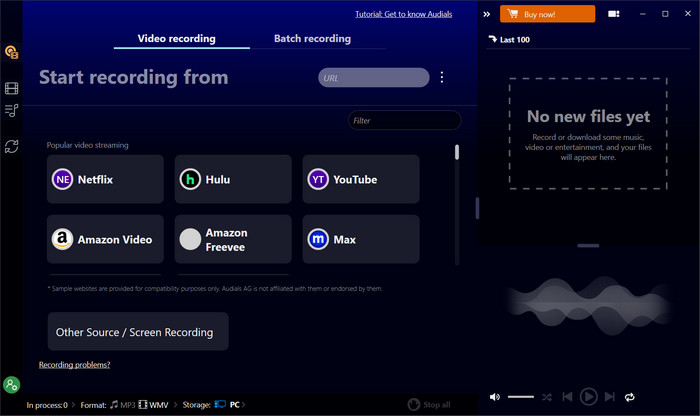
Step 3.Configure Recording Settings
Before you start recording, choose your preferred output quality, video format, and save location in Audials. You can also adjust recording settings to optimize video and audio quality.
Step 4.Screen Record Netflix Content
Click the Record button in Audials and start playing the Netflix movie or episode. Audials will automatically detect the playback window and begin recording. Unlike standard screen recorders that may result in black screens, Audials is specifically designed for recording streaming video content.
Step 5.Save and Watch the Recorded Video Offline
When the movie finishes playing, stop the recording and locate the saved video in Audials' media library. You can then watch the recorded Netflix video offline, transfer it to other devices, or keep it for future viewing. Although screen recording takes place in real time, it remains a practical option for users looking to screen record Netflix movies and save them locally.
Audials uses screen recording rather than direct downloading. When testing the same 90-minute Netflix movie, the recording process took approximately 90 minutes because the video had to play from start to finish in real time. The recorded video was saved successfully and could be watched offline on any device.
Part 4. Rip Movies from Netflix with GitHub Open-Source Tool
For users who prefer free and open-source solutions, several GitHub projects are designed to rip movies from netflix help download or capture online videos. These tools can be a good choice for advanced users who are comfortable working with command-line software. While they may require additional setup and technical knowledge, they offer a flexible way to save streaming content without purchasing commercial software.
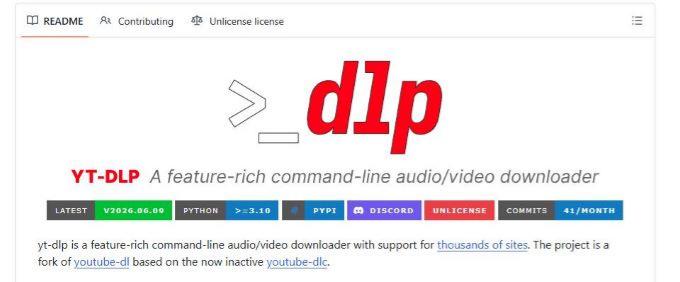
One of the most popular open-source projects is yt-dlp, a command-line video downloader available on GitHub. Although support for subscription streaming services can vary, many users rely on it to download videos from a wide range of websites and online platforms.
Step 1.Download and Install yt-dlp
Visit the GitHub repository of yt-dlp and download the latest release for your operating system. Windows users can download the executable file directly, while Mac and Linux users can install it through Terminal.
Step 2.Open Command Prompt or Terminal
After installation, open Command Prompt (Windows) or Terminal (Mac/Linux) and navigate to the folder where yt-dlp is installed.
Step 3.Run the Download Command
Enter the appropriate command according to the documentation and start the download process. The tool will analyze the video source and attempt to rip the content to your computer.
Step 4.Locate the Saved Video
Once the process is complete, the downloaded file will be saved to your specified output folder, where it can be viewed offline or transferred to other devices.
Unlike other Netflix downloaders, yt-dlp requires command-line operations and manual configuration. In my testing, most of the time was spent setting up and configuring the tool rather than downloading the video itself. As a result, the overall workflow was considerably more time-consuming than using FlixiCam Netflix Downloader or Audials.
Part 5. FlixiCam vs Audials vs yt-dlp: Which Is the Best Way to Rip Netflix Movies?
| Feature | 👍 FlixiCam Netflix Downloader | Audials | yt-dlp |
| Extraction Method | Direct Video Download | Screen Recording | Command-Line Download |
| Output Format | MP4 / MKV | MP4 / WMV | Depends on Source |
| Output Quality | Up to 1080p | Depends on Recording Settings | Depends on Source |
| Audio | Dolby Atmos / 5.1 surround sound | Stereo | Depends on Source |
| Subtitles | Internal / External / Hardcoded | Limited Support | Limited Support |
| Batch Download | ✅ | ❌ | Requires Commands |
| Download Speed | Up to 10X Faster | Real-Time Recording Only | Varies by Site |
| Built-in Browser | ✅ | ❌ | ❌ |
| Search Videos Directly | ✅ | ❌ | ❌ |
| Beginner Friendly | ★★★★★ | ★★★★☆ | ★☆☆☆☆ |
| Success Rate | High | Medium | Low to Medium |
| Requires Technical Knowledge | ❌ | ❌ | ✅ |
| Watch Without Netflix App | ✅ | ✅ | Depends on Source |
| Save Videos Permanently | ✅ | ✅ | ✅ |
| Supported Platforms | Windows & Mac | Windows | Windows / Mac / Linux |
| Customer Support | ✅ Professional Support | ✅ | Community Support Only |
| Best For | Most Netflix Users | Recording Streaming Videos | Advanced Users & Developers |
Part 6. What You May Ask About Ripping Netflix Movies
Q1. Can I download a movie from Netflix to my computer?
Netflix does not officially allow you to download movies to a computer for permanent offline viewing. While Netflix offers a download feature on supported mobile devices, downloaded titles remain encrypted and can only be watched within the Netflix app.
If you'd like to keep Netflix movies on your computer for long-term offline viewing, tools such as FlixiCam Netflix Downloader can save Netflix videos as MP4 or MKV files, making them easier to store and play on compatible devices.
Q2. Can you save downloaded Netflix movies to a USB?
Netflix's official downloads cannot be copied to a USB drive because they are stored in a protected format and are tied to the Netflix app. Simply moving the downloaded files to a USB drive will not make them playable on another device.
However, if a Netflix movie is saved as a standard MP4 or MKV file, it can be transferred to a USB drive just like any other video file. Many users choose this approach when they want to watch movies on TVs, media players, or computers without relying on the Netflix app.
Q3. How to Rip Movies from Netflix on Mac?
Since Netflix does not provide an app for macOS, Mac users can't watch Netflix movies offline within the Netflix app. One solution is to use a specialized Netflix downloader that supports Mac.
For example, FlixiCam Netflix Downloader for Mac allows you to search for Netflix titles, choose MP4 or MKV as the output format, and save movies and TV shows directly to your Mac for offline viewing. The software supports up to 1080p video quality, Dolby 5.1 audio, multilingual subtitles, and batch downloads, making it one of the most convenient ways to rip movies from Netflix on Mac.
How can you rip Netflix movies in HD on a Mac without using the Netflix app? All you need is FlixiCam Netflix Downloader.
 Download Win
 Download Mac
Tested: 5 Best Netflix Downloaders for PC, Mac, Android & iPhone
We tested 5 Netflix downloaders for PC, Mac, Android, and iPhone to find the best option to download Netflix movies. Compare free trials, features, and performance in this review.Learn More > >
The End
Now that you know how to rip movies from Netflix, it's easier to choose the method that best matches your needs. Screen recording tools can be useful for users who prefer a recording-based approach, while open-source solutions is suitable for users who are comfortable with technical setup and command-line operations.
For most users, a dedicated Netflix downloader offers the best balance of simplicity, speed, and output quality. FlixiCam Netflix Downloader makes it easy to save Netflix movies and TV shows as MP4 or MKV files, and enjoy offline viewing across a wide range of devices.
📢 Disclaimer
All tutorials here are for personal entertainment & education only. Please ensure you have a valid legal account on the relevant platforms. We do not support commercial distribution or piracy — always respect content creators' copyrights.
Ashley Wood | Senior Writer

![How to Record Netflix Videos [PC, Mac, Linux, iOS, Android]](/img/blog/record-netflix-video.jpg)